
Build a quote-request list with Google Forms, a filter in Make, and Google Sheets.
For our fictional garden-care business, Make keeps quote requests out of the general-inquiry pile, cleans the email field, and adds accepted leads to a tracker. Follow the exact mapping and a three-response demonstration below.
Fictional data only. Google sign-in was completed off camera.
In this guide
- What you will build
- Before you begin
- Step 1 — Prepare the Google Form
- Step 2 — Prepare the lead tracker
- Step 3 — Create the Make scenario
- Step 4 — Configure Watch Responses and capture a sample
- Step 5 — Configure Add a Row and map the fields
- Step 6 — Add the Quote requests only filter
- Step 7 — Test three responses and verify two rows
- Step 8 — Activate and monitor when you are ready
- Understand credits before choosing a schedule
- Common errors and how to troubleshoot them
- Optional improvements beyond the recorded workflow
- Frequently asked questions
- Your next step
What you will build
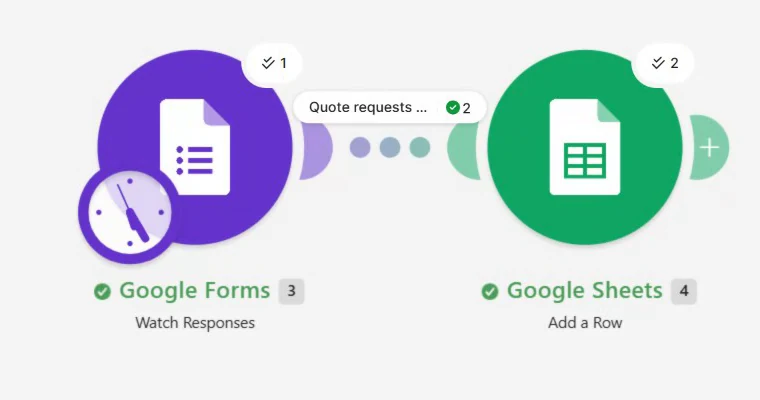
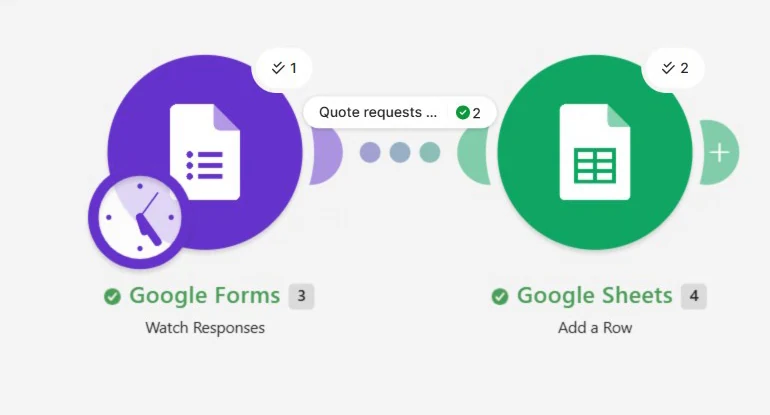
The scenario polls for new responses, applies the quote-request filter, and writes one row for each accepted response.
Workflow diagram, not a product screenshot. The filter belongs between the two modules; it is not a third app module.
Watch the real walkthrough
Watch on YouTube if the embedded player is unavailable. The written steps below contain the full configuration.
The Cedar Lane Garden Care demonstration produced two rows from three submissions and remained inactive afterward. This is a small manual test, not evidence of production reliability or duplicate prevention.
Do you actually need Make?
Use Google Forms’ built-in response destination to store every response. Use Make for this separate filtered list, email cleanup, and fixed Source and Status values.
Before you begin
- A Google account that can edit the demo form and write to the destination spreadsheet. Use a dedicated demo account while learning.
- A Make account and enough available credits for a few manual tests. No paid-only module, AI service, or custom code is used.
- A separate test form and spreadsheet containing fictional information only.
- Access to Google’s authorization screens. Review the requested permissions yourself; file sharing and OAuth permissions are separate controls.
You can create a Make account if needed. This is an affiliate link: Practiloom may earn a commission at no additional cost to you. For platform capabilities and plan comparisons, see our Make product overview.
Make’s Sign in with Google connection is the normal starting point. Creating your own Google Cloud OAuth application is an advanced option, not a prerequisite for this exercise. A Workspace administrator may restrict third-party connections. See Make’s Google Forms connection documentation.
Step 1 — Prepare the Google Form
Create a blank form called Practiloom Demo – Garden Quote Requests. Add the description “Cedar Lane Garden Care — fictional demonstration. Submit test data only.” Create these questions:
On narrow screens, scroll this table horizontally. With a keyboard, focus the table area and use the Left and Right arrow keys.
| Question | Type | Required / options |
|---|---|---|
| Full name | Short answer | Required |
| Short answer | Required; response validation: Text → Email | |
| Service | Multiple choice | Required: Lawn care; Garden cleanup |
| Request type | Multiple choice | Required: Quote request; General question |
| Message | Paragraph | Optional |
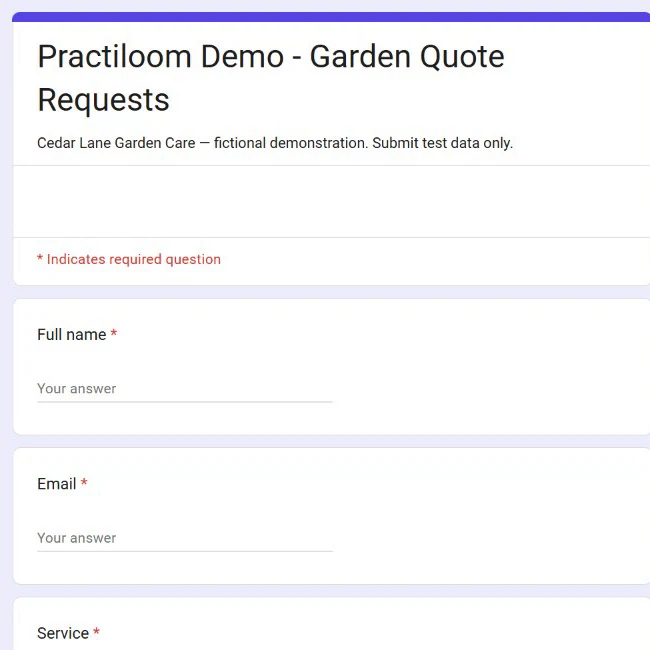
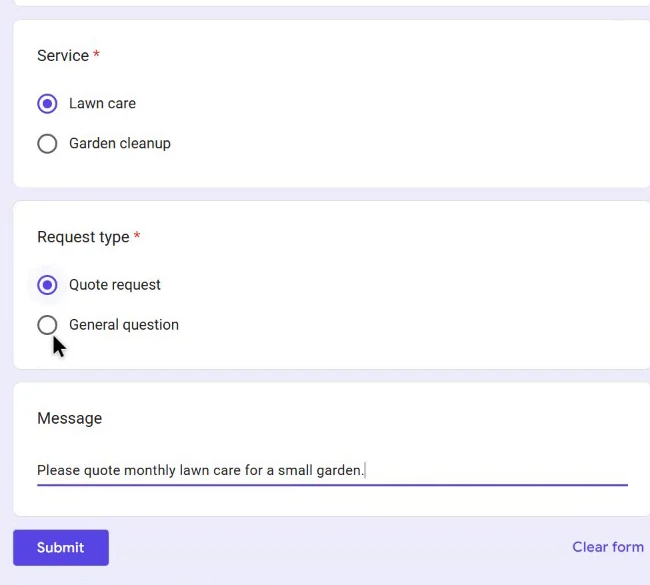
For Email, open the question’s options menu and choose Response validation, then select the email text rule. Google explains the available rules in its form validation guide. Email format validation does not verify deliverability, identity, or permission to send marketing.
When ready to test, use Publish and review responder access. Restrict the demo to your test account rather than distributing it publicly. Use the responder link for submissions and the editor link to find the Form ID. These links serve different purposes; the public responder identifier is not the editor Form ID. See Google’s publish and responder-access instructions.
Step 2 — Prepare the lead tracker
Create a spreadsheet named Practiloom Demo – Lead Tracker. Rename its first tab Leads, and put these headers in row 1, exactly in this order:
A: Response ID    B: Submitted at    C: Name    D: Email
E: Service        F: Message         G: Source  H: Status
Keep this destination separate from any sheet that Google Forms creates for all responses. Otherwise, the built-in response link and Make could both write data you mistake for duplicates. Start with a blank tracker beneath the header row, and do not rearrange its columns after configuring positional mappings.
If a different Google account owns the files, grant the account used by Make the necessary access to the two demo files. In our test, that account received Editor access to the form and spreadsheet. Responder access alone was not enough to configure this workflow. Do not make either file public to solve a permission error.
Step 3 — Create the Make scenario
Open Scenarios in Make and create a scenario named DEMO – Google Form Quote Leads. Add Google Forms → Watch Responses as the first module. Select the current response trigger, not the legacy Watch Responses in Google Sheets module.
A module is an app action or trigger. A bundle is one set of data passed through the scenario; here, one form response becomes one bundle. Several bundles can come from one trigger check. Mapping tells a later module which values to take from an earlier module.
Keep scheduling off during setup. Save the scenario as you complete each configuration. If you are new to this terminology, our first automation guide introduces the trigger-to-action pattern.
Step 4 — Configure Watch Responses and capture a sample
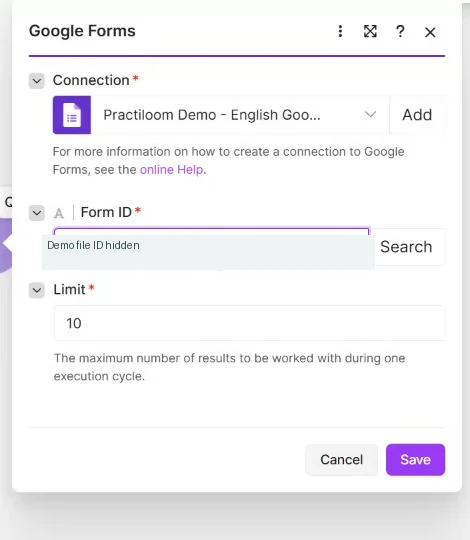
- Open Watch Responses and create a Google connection. Sign in with the intended demo account and review the requested access. Connection names are only labels; verify which account you actually authorized.
- Find your editor URL:
https://docs.google.com/forms/d/YOUR_FORM_ID/edit. Copy only the portion between/d/and/editinto Form ID. - Set Limit to 10, as in the demo. This is a response limit for a check, not a credit budget or a daily quota. The three-response demonstration does not test a backlog larger than Limit 10 or establish how quickly such a backlog would be drained.
- Save the module. When Make asks where to start, choose From now on before sending your new sample. If you need to revisit the choice, open the trigger’s context menu and its starting-point option.
Seed the mapper before building the destination
With only the Forms module configured, submit a new response containing Demo Setup, setup@example.com, Lawn care, General question, and “Mapping sample only.” Then click Run once in Make. Because this trigger polls, submit first and run the check afterward.
Open the output bubble above Forms. Expand answers, then the answer collection, then textAnswers → answers → value. Identify the relevant question by its known sample value. Also locate the top-level responseId and createTime.
In our output, questions used generated IDs rather than friendly field names. Your IDs and module numbers will differ. The first item of the nested answer array is indexed as [1] in the recorded Make expressions. Do not choose an entire collection when a cell needs its text value. Make’s array-mapping guide explains these nested structures.
This is a polling trigger, not an instant webhook. A form submission does not immediately push a row into Sheets; Make must perform its next scheduled or manual check. A linked Google response sheet is not required for this particular trigger.
Step 5 — Configure Add a Row and map the fields
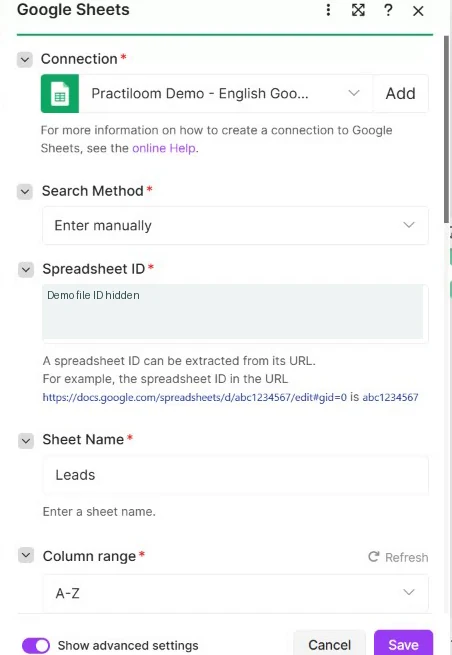
Add Google Sheets → Add a Row after Forms. Authorize Google Sheets access if prompted, using an account able to write to your tracker. In the recorded setup, the search method was Enter manually.
- Spreadsheet ID: take the ID from
https://docs.google.com/spreadsheets/d/YOUR_SPREADSHEET_ID/edit. Do not paste the whole URL or the tab’sgid. - Sheet Name:
Leads. - Column range:
A–Z, the range offered by the captured interface. Populate A:H only and leave I:Z empty.
The exact eight-column mapping
The captured manual setup showed column letters. Match each letter to your header row. Other selection methods may display header names; do not assume that changes the order of your sheet.
On narrow screens, scroll this table horizontally. With a keyboard, focus the table area and use the Left and Right arrow keys.
| Column / header | Value to map | Purpose |
|---|---|---|
| A · Response ID | Forms responseId | Trace the originating response. Storing the ID does not automatically prevent duplicates. |
| B · Submitted at | formatDate(createTime; "YYYY-MM-DD HH:mm:ss"; "UTC") | Submission time formatted explicitly in UTC. |
| C · Name | trim(Full name answer value) | Remove surrounding whitespace. |
| D · Email | lower(trim(Email answer value)) | Remove surrounding whitespace and normalize case. |
| E · Service | Service answer value | Keep the selected service text. |
| F · Message | Message answer value | Keep the optional message. |
| G · Source | Literal text: Google Forms | Identify where the lead originated. |
| H · Status | Literal text: New | Give each accepted lead a starting status. |
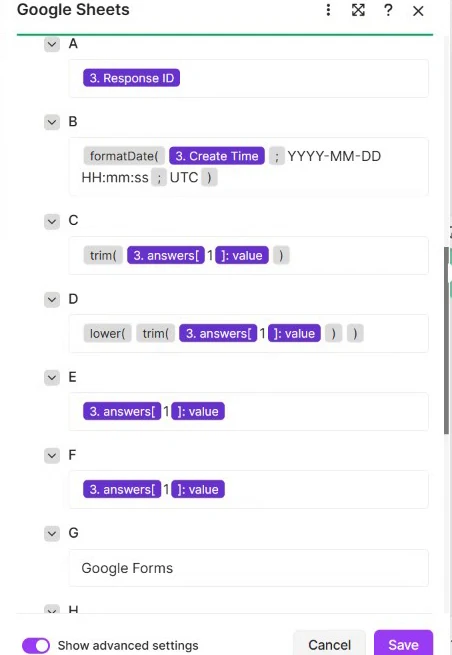
Insert tokens from your own Forms output, then wrap them in the functions shown above. Use the Make function editor rather than typing a question label as literal text. See the official text function reference for trim and lower.
Technical reference: expressions from the actual demo
These are evidence of the demonstrated mapping, not a portable template. Module 3 and every question ID below belong to this form; replace them by selecting your own tokens.
A {{3.responseId}}
B {{formatDate(3.createTime; "YYYY-MM-DD HH:mm:ss"; "UTC")}}
C {{trim(3.answers.0c302b8c.textAnswers.answers[1].value)}}
D {{lower(trim(3.answers.47a46c2f.textAnswers.answers[1].value))}}
E {{3.answers.514b6620.textAnswers.answers[1].value}}
F {{3.answers.101867c8.textAnswers.answers[1].value}}
G Google Forms
H New
Use the demonstrated write settings
In advanced settings, the demo used Unformatted: No, Value input option: Raw, and Insert data option: Insert rows. Raw avoids treating submitted strings as user-entered formulas or automatically parsed dates. The formatted UTC timestamp is therefore stored as text, not a native spreadsheet date value. If you later need date calculations, deliberately add and test a date-conversion strategy.
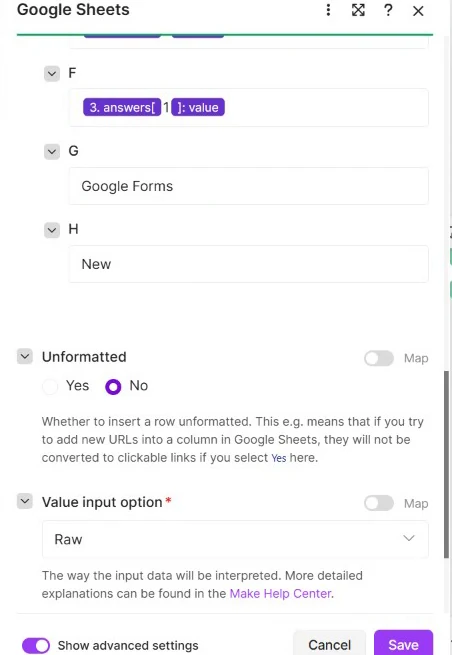
Make’s Google Sheets module reference describes selection methods, header behavior, and write options. Save the module before adding the filter.
Step 6 — Add the Quote requests only filter
Click the connection between Forms and Sheets, and open Set up a filter. Name it Quote requests only. Configure two conditions joined by AND:
On narrow screens, scroll this table horizontally. With a keyboard, focus the table area and use the Left and Right arrow keys.
| Left operand | Operator | Right operand |
|---|---|---|
| The Request type answer value | Text operators: Equal to | Quote request |
trim(Email answer value) | Text operators: Not equal to | Leave the right-hand value empty |
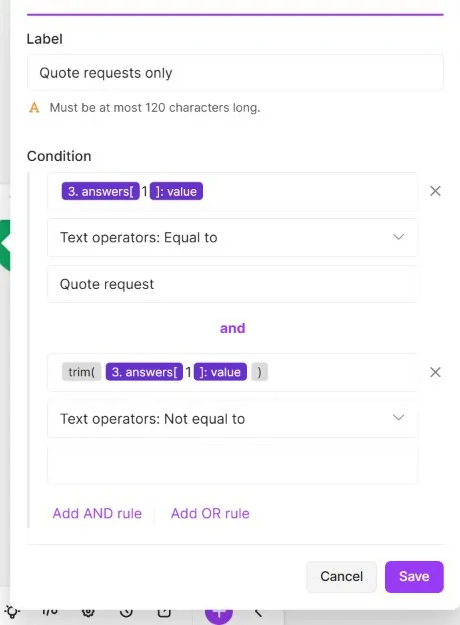
Select the same nested text answer values you identified in the seed output. In the actual demo, Request type was 3.answers.67571edb.textAnswers.answers[1].value. Your question ID will differ.
The first condition excludes general questions. The second rejects an empty email after trimming. The empty-email condition was configured but was not exercised in the recorded test; the three submitted responses all contained email addresses. The required Form email question already provides a first guardrail; this filter is an additional check, not proof the email address exists. Both Lawn care and Garden cleanup can pass: service is not a qualifying condition here.
Save the filter. Make’s filter documentation confirms that a bundle either continues to the next module or stops on that route. Rejected responses remain in Google Forms; this filter does not delete them.
Step 7 — Test three responses and verify two rows
Keep the scenario inactive. Submit these new fictional responses after the seed run. Use the responder form, not its editor.
On narrow screens, scroll this table horizontally. With a keyboard, focus the table area and use the Left and Right arrow keys.
| Name / email | Service / request type | Message / expected result |
|---|---|---|
Jamie RowanJAMIE.ROWAN@example.com | Lawn care Quote request | Please quote monthly lawn care for a small garden. Pass; email becomes lowercase. |
Taylor Morgantaylor.morgan@example.com | Garden cleanup Quote request | Please quote a one-time garden cleanup. Pass. |
Casey Elliscasey.ellis@example.com | Lawn care General question | What areas do you cover? Stop at filter. |
Now click Run once. Open the Forms output and inspect all three response bundles. Inspect the filter’s result and the Sheets output, then open the tracker itself. Do not judge success solely from a green module.
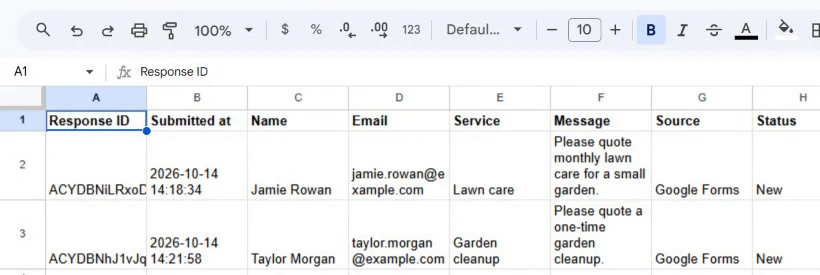
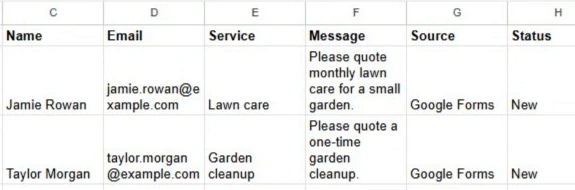
Check all eight columns: response IDs present, UTC submission text present, names and services correct, Jamie’s email jamie.rowan@example.com, and both rows labeled Google Forms / New. Casey should not have a row.
Evidence limit: no retained screenshot displaying all three expanded incoming response bundles was located in the supplied assets. The three recorded submission clips and the two destination rows support the documented test sequence; the canvas operation counter alone does not prove a three-bundle output. The recording did not test a backlog above Limit 10, an additional no-new-data run, deliberate retries, duplicate prevention, or an empty-email submission. Do not infer those tests succeeded. The demo also sent no emails and made no CRM changes.
Step 8 — Activate and monitor when you are ready
The recorded demo remains inactive. To operate your own scenario after testing, save it, open the scheduling control, choose a suitable interval, and activate it. Make’s scheduling guide explains this sequence. Manual Run once testing and recurring activation are different actions.
Choose an interval based on acceptable lead delay and your allowance, not just the fastest option. After activation, submit one controlled test and inspect the next execution in History, the filter decisions, and the destination row. Check that the next scheduled run is expected. Review connection errors and credit usage regularly, especially after changing form questions or sheet columns.
Turn scheduling off again for a learning scenario. Before handling real customers, agree on access, retention, follow-up ownership, error handling, and duplicate policy. This basic scenario is a starting point, not a complete customer-data system.
Understand credits before choosing a schedule
The test used ordinary non-AI modules. Make currently bills these at one credit per operation; polling checks can consume credits even when there is nothing new. See the official credit reference. The filter and inline text cleanup did not add separate app-module executions in our test.
For a simple planning estimate, assume one credit per trigger check, plus one per accepted Add a Row operation. With uninterrupted polling over a 30-day month:
On narrow screens, scroll this table horizontally. With a keyboard, focus the table area and use the Left and Right arrow keys.
| Polling interval | Trigger checks / day | Trigger-only estimate / 30 days |
|---|---|---|
| Every 15 minutes | 96 | 2,880 credits |
| Every hour | 24 | 720 credits |
| Once daily | 1 | 30 credits |
These calculations exclude accepted rows, setup tests, retries, extra modules, and other scenarios. At an hourly interval, 100 accepted leads would add roughly 100 row-write credits to 720 checks: about 820 for this simplified workload. It is a budget illustration, not a guarantee.
Plan information checked: 15 October 2026. Make’s published Free plan includes 1,000 credits per month with a 15-minute minimum scheduled interval. That interval is a permitted minimum, not a promise that continuous 15-minute polling fits the allowance. This small manual exercise does not require a paid plan; sustained usage may outgrow Free. Verify the current plan before enabling scheduling.
Common errors and how to troubleshoot them
Work from left to right: source response, trigger output, filter decision, mapped input, then destination row. Change one thing at a time.
On narrow screens, scroll this table horizontally. With a keyboard, focus the table area and use the Left and Right arrow keys.
| Problem | What to inspect | Practical fix |
|---|---|---|
| New response is missing | Was it submitted after the starting point? Is the correct form selected? Was a poll actually run? | Send a fresh response, then Run once. Check Limit and outputs before changing the cursor. Moving backward may replay earlier responses. |
| Google permission error | Which account authorized each connection? Can it edit the form and write to the sheet? | Correct restricted file access or renew the relevant connection. Workspace restrictions may need an administrator. Never share credentials. |
| No row in the expected sheet | Spreadsheet ID versus tab gid; Sheet Name spelling; selected Google account | Open the exact destination and verify Leads exists. Fix the module target; do not create a second tracker accidentally. |
| Cells are blank or contain the wrong text | Whether you mapped a text value, a whole collection, or a literal field label | Inspect the known seed values in Forms output. Re-select tokens after deleting/recreating questions. |
| Quote requests are blocked | Exact Request type answer, AND grouping, email token and empty right operand | Compare an actual output bundle against both conditions. Check spelling and accidental spaces rather than removing the filter blindly. |
| Duplicate rows appear | Replayed cursor, copied scenarios, retries, manual reprocessing, or two writers | Stop recurring runs while diagnosing. Compare Response IDs. This demo has no duplicate guard; add an explicit lookup/idempotency design before relying on replay safety. |
| The row did not appear instantly | Scheduling off, next poll not yet due, or execution error | Watch History and the next scheduled time. Watch Responses is a polling trigger. |
| Dates remain text | Raw plus formatDate returns a formatted string | This matches the demo. Plan a separate date conversion if native spreadsheet dates are required. |
Optional improvements beyond the recorded workflow
- Duplicate prevention: look up Response ID before insertion or use an appropriately designed key store. A simple search-then-write can still race under concurrent execution; test your retry and concurrency strategy.
- Notifications: add a team email or messaging action after successful insertion. Choose recipients deliberately and budget the extra executions. No notification was built in this demo.
- Lead categorization: route services to the right person or add a separate category column. Start with deterministic rules; AI is unnecessary for the two service choices shown here.
- CRM handoff: replace or supplement Sheets with a supported CRM action once you define ownership and duplicate rules.
- Production safeguards: monitor failures, use appropriate error handling, test changed questions, and agree on retention for contact details.
These are design ideas, not tested parts of the source video. Each extension needs its own permissions, verification, and credit estimate.
Frequently asked questions
Can Google Forms send responses to Sheets without Make?
Yes. Forms can link all responses to a spreadsheet directly. Use Make when you want this separate filtered and normalized lead tracker or additional app actions.
Is Google Forms Watch Responses instant?
Not in this workflow. It polls when Make runs the scenario, either manually or on a schedule. Allow for that interval when setting response expectations.
Do I need a paid Make plan?
Not for a few manual tests with these modules and sufficient free credits. Continuous polling and additional actions can exceed Free, so calculate the ongoing allowance before activation.
Why do my answer fields have different IDs?
Google Forms assigns question IDs to your form, and Make module numbers depend on your scenario. Use your own sample output instead of copying the demonstration’s IDs.
Does the filter delete rejected submissions?
No. It prevents a bundle from reaching Add a Row on this route. The original submission stays in Forms.
Does storing Response ID prevent duplicate rows?
No. It gives you a key to investigate or build a duplicate check. The demonstrated Add a Row action does not implement that check.
Can I use the form’s built-in email collection instead?
You can design a form that way, but its response structure can differ. This demo uses a required short-answer Email question; inspect and remap your output if you change that design.
Your next step
You now have a concrete pattern: collect a response, inspect its actual fields, allow only quote requests through, and write a clean eight-column lead row. Reproduce the three-response test first. Once the output is right, choose a sustainable schedule and add only the safeguards your real process needs.
For broader platform evaluation, continue with the Practiloom Make guide. For another beginner-friendly way to plan a useful workflow, read Your First Automation.